Wireless Display Extenders for Home Setups: What Actually Works
The standard assumption is that going wireless means accepting noticeable lag, dropped signal, and a setup that eats an entire afternoon. That assumption was reasonable five years ago. It isn’t now. A well-built 5GHz wireless display kit delivers 1080P at 60Hz with sub-100ms latency, sets up in under three minutes, and requires zero network configuration. No drywall damage. No cable management headaches.
The harder question is which product to actually buy and what to verify before you spend anything. Here’s the breakdown.
Why Wireless Display Lag Stopped Being a Real Obstacle

This is the objection that sends people back to running cables, so address it head-on.
For competitive gaming — first-person shooters, fighting games, anything where 50ms of input lag changes the outcome — wired HDMI is still the correct answer. Wireless adds measurable latency, and in those contexts it matters.
For every other use case homeowners actually have? It doesn’t. Streaming video, mirroring a laptop to a living room TV, displaying security camera feeds, running a projector from across the room — none of these require reaction-time precision. A 100ms delay on a Netflix stream is invisible to human perception. Your brain processes visual information at roughly 13ms per frame at 60fps; the lag is genuinely not perceptible in passive viewing.
What Creates the Delay in Wireless Display Systems
The transmitter encodes your video signal into a compressed data stream and broadcasts it over radio frequency. The receiver decodes that stream and outputs standard HDMI to your display. Encode and decode time is where latency lives. Early kits running on 2.4GHz fought for bandwidth with every microwave, Bluetooth headphone, and neighbor’s router in range, which caused unpredictable spikes. The shift to 5GHz dramatically reduced that interference.
Modern 5GHz kits from brands like Lemorele, Nyrius (the ARIES Pro line), and J-Tech Digital consistently measure 50-100ms under real home conditions. At the low end of that range, the delay is invisible on anything except reflex-dependent gaming.
5GHz vs 2.4GHz: The Right Answer for Home Use
Use 5GHz. For home distances — 20 to 80 feet, a wall or two — 5GHz range is more than adequate. It’s faster, cleaner, and not fighting shared channel congestion. 2.4GHz has a theoretical range advantage at extreme distances through many walls, but that scenario rarely applies to living rooms, bedrooms, or home offices.
Any product that defaults to 2.4GHz without a clear engineering reason should raise a flag. The better kits create a dedicated peer-to-peer 5GHz connection that bypasses your router entirely — which also means they work in locations with no home network at all.
Where 1080P at 60Hz Sits Against 4K Options
4K wireless extenders exist. The Actiontec MyWirelessTV5 and higher-end J-Tech Digital units push 4K, but you’re looking at $150 to $250 and up for that capability. For a 65-inch or smaller TV at a typical 8-12 foot viewing distance, the visible difference between 1080P and 4K on streaming content is minimal. Broadcasters compress 4K signals anyway, which closes the gap further. The 1080P@60Hz price range is where the practical value is, and it’s where both products in this guide land.
USB-C Transmitter vs Standard HDMI Wireless Kits: A Direct Comparison
Both product types deliver the same result — wireless video to a remote display. The difference is what your source device outputs. Here’s how the main options stack up.
| Spec | Lemorele USB-C Kit | Lemorele HDMI Kit | Nyrius ARIES Pro |
|---|---|---|---|
| Price | $62.69 | $55.99 | ~$100 |
| Source input | USB-C (DP Alt Mode) | HDMI | HDMI |
| Max resolution | 1080P@60Hz | 1080P@60Hz | 1080P@60Hz |
| Rated range | 50M / 164ft | 200M / 656ft | 30M / 100ft |
| App required | No | TuTuPlay (optional) | No |
| Build material | Plastic, white | Aluminum alloy, deep gray | Plastic, black |
| Rating | 4.0/5 (155 reviews) | 4.2/5 (443 reviews) | Varies by retailer |
Pick USB-C If Your Device Supports DisplayPort Alt Mode
MacBooks (2026 and newer), iPad Pro, Dell XPS, HP Spectre, Lenovo ThinkPad X1 Carbon, and most Android flagships all support USB-C with DisplayPort Alt Mode. The transmitter plugs directly into that port — no HDMI adapter in the signal chain. Fewer adapters means fewer failure points and a cleaner physical connection at your laptop.
One check before buying: not every USB-C port carries video. Charging-only ports won’t work. Most premium laptops have at least one DP Alt Mode port; confirm yours in your device spec sheet before ordering.
Pick HDMI If Your Source Uses a Standard HDMI Output
Desktop PCs, gaming consoles, streaming boxes (Apple TV, Roku, Amazon Fire Stick), Blu-ray players, and NVRs for security camera systems all use HDMI output. The Lemorele HDMI wireless transmitter kit also carries a significant range advantage — 656ft rated versus 164ft for the USB-C version — which matters for larger homes, outbuildings, or pushing signal between floors.
Three Rules That Apply to Every Wireless Display Kit
Run these checks before looking at specs, prices, or reviews. They eliminate most duds quickly.
HDCP Compatibility Is Non-Negotiable for Streaming Content
HDCP (High-bandwidth Digital Content Protection) is the encryption layer on Netflix, Disney+, Amazon Prime, and most streaming platforms. Kits that don’t properly handle HDCP show a black screen or throw an error on protected content — even if they otherwise perform fine on local files. This problem is disproportionately common with unrecognized brands selling on major retail platforms. Confirm HDCP support explicitly in the spec sheet, not just in user reviews.
Dedicated Connection Beats Wi-Fi-Dependent Systems
Some wireless display kits route video over your home Wi-Fi network. This sounds convenient until a video call or a firmware update saturates your router and the stream starts stuttering. Kits that create a direct point-to-point 5GHz link between transmitter and receiver sidestep this entirely — they don’t touch your router, don’t compete with other devices, and function in locations with no network at all. When product listings say “no Wi-Fi required,” that’s the feature to look for.
Apply a 50% Discount to Stated Range Specs
Manufacturers test range in open-air, line-of-sight conditions — no walls, no furniture, no obstructions. In a real home with drywall partitions, wooden studs, glass doors, and large appliances, expect real-world performance at roughly 40-60% of the listed maximum. A kit rated for 164ft practically covers 65-90ft through interior walls. Map your actual transmitter-to-receiver distance against that adjusted figure before assuming any product will reach.
The Lemorele USB-C Kit Is the Right Buy for Modern Laptop and Tablet Users
This is the product to get if your laptop or tablet outputs video over USB-C and you want a zero-configuration wireless display solution. No qualifications needed.
The Lemorele USB-C wireless transmitter and HDMI receiver kit at $62.69 earns the plug-and-play label. There’s no driver installation, no pairing mode sequence, no app to configure. Plug the transmitter into your USB-C port, plug the receiver into your display’s HDMI input, wait about five seconds. The screen mirrors. That’s the complete setup process.
How It Holds Up in Actual Home Use
Within the 50M rated range, signal stays at 1080P@60Hz without quietly downgrading to 720P when it weakens — which is a real behavior in lower-quality kits. The transmitter body is roughly the size of a USB flash drive. It doesn’t pull the USB-C port downward or block adjacent ports on a thin laptop chassis.
Common scenarios where it works well: laptop on a couch mirroring to a wall-mounted TV, home office laptop connected wirelessly to a secondary monitor across a desk setup, tablet connected to a projector in a room without a nearby HDMI port. The receiver tucks behind the display with no visible cable running across the room.
The DP Alt Mode Requirement — Check This First
USB-C DisplayPort Alt Mode is the technical capability that allows the transmitter to work. Devices confirmed compatible: MacBook Air and Pro (2026+), iPad Pro with USB-C, most premium Windows ultrabooks, Samsung Galaxy S and Z-series phones, Google Pixel 6 and newer, OnePlus flagships.
Devices that typically lack it: budget Android phones, older laptops where USB-C is charging-only, USB hubs acting as pass-through (the hub’s USB-C port often won’t carry video even if the laptop port does). If your device spec sheet says “Thunderbolt” or “USB-C with DisplayPort,” you’re good. If it only says “USB 3.1 Gen 1,” check further before assuming.
What the 4.0/5 Rating Reflects
With 155 reviews at 4.0/5, this is a solid if not exceptional score. The negative reviews cluster into two buckets: users whose USB-C ports didn’t support DP Alt Mode (a compatibility issue, not a product defect), and users who expected 4K output at this price point. Neither reflects a problem for a buyer who confirms compatibility upfront and understands the 1080P spec. For DP Alt Mode-capable devices doing standard home display tasks, the performance is consistent with what the specs promise.
What to Check in Your Home Before Installing Any Wireless Kit
Products perform differently depending on the physical environment. Two installs with identical hardware can get very different results based on room layout alone.
Line of Sight vs. Through-Wall Signal Loss
Line of sight between transmitter and receiver is ideal — signal travels cleanest with nothing in between. A single drywall partition introduces minor attenuation, usually manageable. Concrete walls, brick, or metal-framed partitions (common in older homes and commercial conversions) cause significant signal loss. If your install path involves concrete floors or brick exterior walls, expect real-world range to drop to 20-30% of rated specs. The fix is straightforward: position the receiver in line of sight where possible, or mount it elevated to clear large furniture blocking the signal path.
Power Supply at the Receiver End
Wireless display receivers need power independently of the HDMI connection. Most current kits, including both Lemorele options, can draw from a TV’s USB port if one is available and stays powered when the TV is on. Wall-mounted TVs in rooms without an accessible outlet near the display may need a short USB cable routed along the mount bracket. Minor issue, but worth mapping out before the unit arrives so you’re not improvising on install day.
Keeping the Install Clean in a Renovated Space
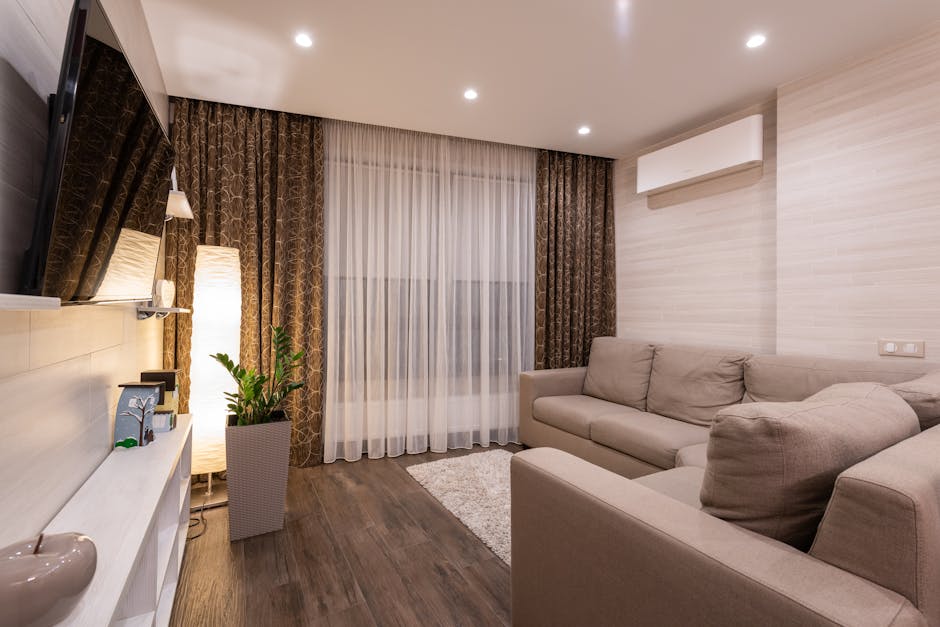
A wireless kit eliminates the long HDMI run but still leaves two physical units. The transmitter lives with your source device. The receiver goes near your display. For a clean home theater or freshly renovated space, 3M Command strips or a small shelf bracket positions the receiver behind the TV out of sight — no drilling required. This matters more than it sounds when the point of going wireless is partly aesthetic: eliminating visible cable runs as part of a room refresh or furniture makeover.
Questions Worth Answering Before You Commit
Does the kit need to run through my home Wi-Fi network?
No. Both Lemorele kits create a private point-to-point 5GHz connection independent of your router. Signal quality doesn’t degrade when your network is busy. The connection works at a vacation rental, a presentation venue, a workshop — anywhere, with or without internet access.
Can I use this setup for displaying security camera feeds in another room?
Yes. A DVR or NVR with HDMI output can push feeds wirelessly to a monitor or TV in a separate room. The HDMI transmitter version is better suited here — the 656ft rated range covers most residential properties, and the aluminum alloy build handles the always-on duty cycle more gracefully than plastic-bodied alternatives.
Will it work with a ceiling-mounted projector?
Yes, if the projector has an HDMI input. The receiver outputs standard HDMI, so any display with an HDMI port works — TV, computer monitor, or projector. Projector installs are actually one of the cleanest use cases for wireless display kits: a ceiling-mounted unit with no accessible HDMI cable run becomes trivially easy to connect from a laptop anywhere in the room.
What happens when 5GHz interference is high, like in a dense apartment building?
Occasional brief pixelation or a half-second freeze. The dedicated peer-to-peer connection reduces this significantly compared to Wi-Fi-dependent kits, but it’s not completely immune in extreme RF congestion. Dense urban apartment buildings with dozens of overlapping 5GHz networks can stress any wireless display kit. Buy from somewhere with a reasonable return window and test for a week. Suburban and single-family home environments rarely encounter this at all.
When the $55.99 HDMI Version Is the Correct Choice
If your source device has a standard HDMI output, buy the $55.99 HDMI kit instead — it has a higher rating (4.2/5), nearly three times the review count (443 vs 155), four times the range, an aluminum alloy build that runs cooler in always-on setups, and costs $7 less. The USB-C version only wins when you specifically want to avoid an HDMI adapter at the source, which matters for MacBook and iPad Pro users but not for the majority of desktop and console setups.
Disclaimer: The information on this page is for educational purposes only and does not constitute financial advice. Rates, terms, and eligibility requirements are subject to change. Always compare multiple lenders and consult a licensed financial advisor before borrowing.